

Using 
Zoom is a video conferencing tool that allows anyone with a meeting link (usually sent to you by email) to join a meeting, lecture or event.
The host will setup the meeting time and date, then let you know about it via email or on the website.
Usually, you will be asked to Register for the meeting/event. Follow the link and complete your details in the simple form – then press Register. You will receive a confirmation email with the once you have been approved.
On the day of the meeting/event, we will then re-send you the zoom email with a link and password.
Install the App
The first thing to do, before you can join a Zoom meeting for the first time, is to download the App and install it on to your computer or tablet, even if it is days before the event.
 Head to Zoom’s download page and download the 'Zoom Client for Meetings'. If you scroll further down the page you can also download the app for your tablet.
It should only take a couple of minutes, but it’s good to do it well in advance, in case you encounter any problems.
Joining the meeting
When it’s time for the meeting to start, open the invitation email and click on the link to join. It should open a new tab or window.
Joining on your computer
If you’re on a Windows computer or Mac and have already downloaded the app, you’ll then be shown a screen like this:

Click the "open Zoom" pop-up (or "click here" if that doesn't appear) and follow the instructions to join the meeting with the app.
If you haven’t downloaded the app at this point, you’ll be prompted with an option to download Zoom. If you want to join in your browser (rather than downloading an app) you can click "join from your browser" at the bottom of the screen.
You will be asked to enter the password that was sent with the link in the email.
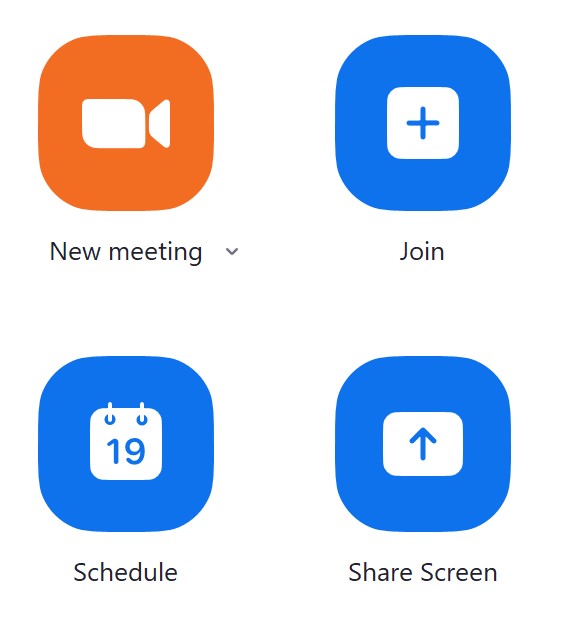
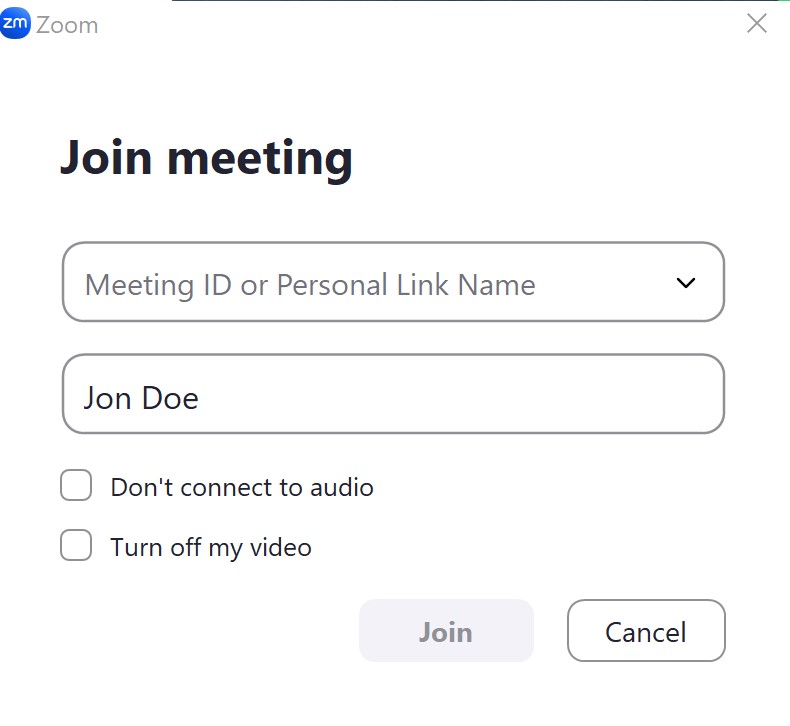
Alternatively, open the zoom APP from your desktop, and select 'Join'. Then enter the meeting ID and Password from the invitation email.
 |
 |
Finally, there are some basic controls that are good to know when you’re in a meeting, such as how to mute or unmute yourself, turn your video on or off and open up the chatbox. We’ve circled these for you in the image below.
